Disaster Recovery Add-On
Kinsta’s Disaster recovery add-on gives your business-critical dedicated server a second recovery location. Your server is continuously replicated to a standby server in a second data center, so if your primary data center has a major issue, we can switch traffic to the standby to bring your site back online.
Kinsta selects the closest compatible data center for your standby server by default. If you have strict data sovereignty requirements, or need the standby in a specific location, discuss this with our team so we can agree on the right data center for you.
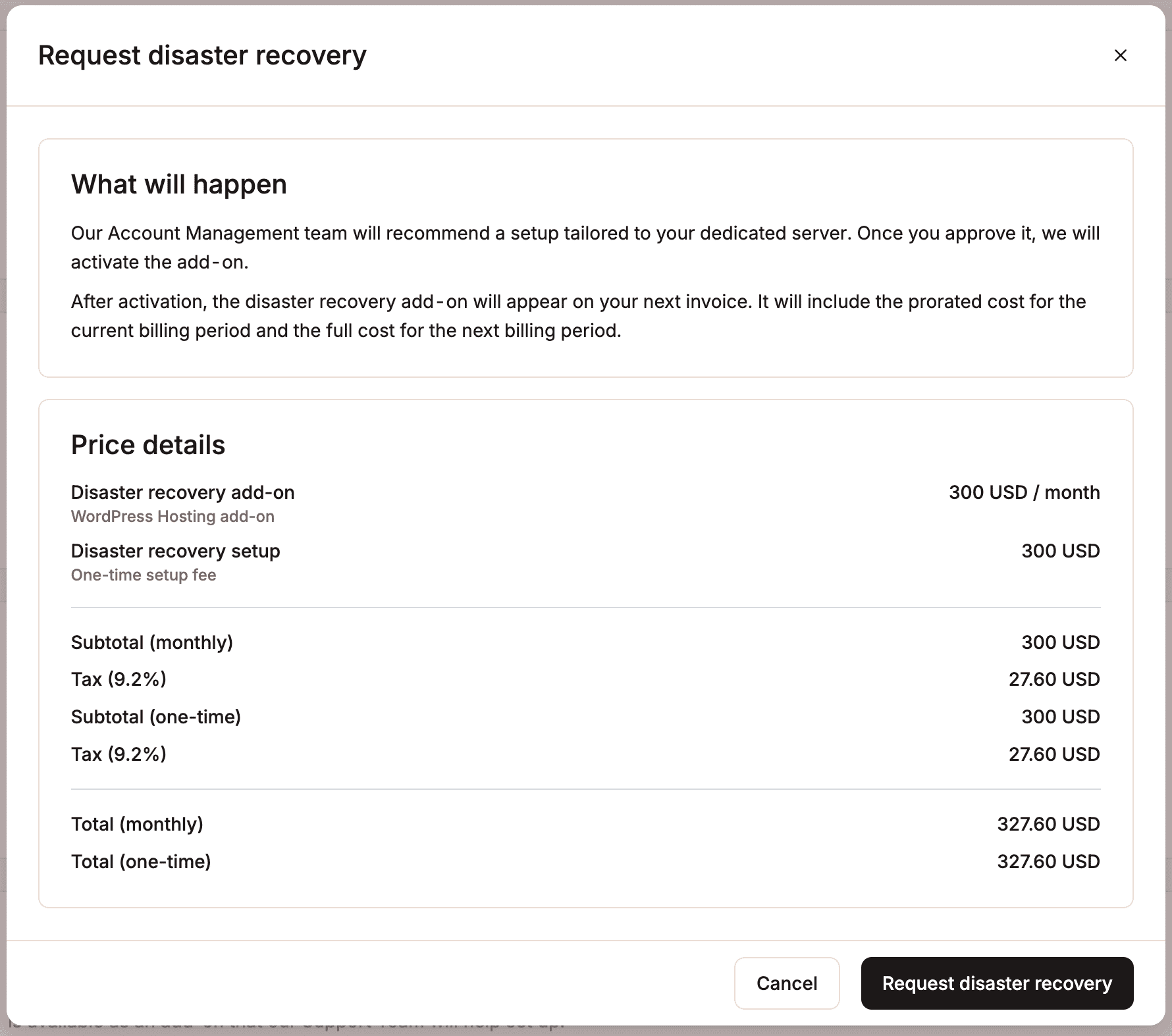
The Disaster recovery add-on costs $300 per month, plus a one-time $300 setup fee, so your first month totals $600, and $300 per month after that.
How it works
- After the initial setup, we continuously replicate your primary server to a standby server in a data center agreed upon with you.
- The standby data center remains idle until a switchover is triggered.
- If an incident occurs at the primary data center, Kinsta investigates first, then initiates a switchover if needed.
- Everything is replicated except your external IP address. After a switchover, we’ll inform you of the new one.
- Once the original data center is stable again, we’ll contact you to arrange switching back. Your external IP address then reverts to its original address.
Important notes
- Recovery isn’t instant, and some downtime should be expected. When an incident occurs, we investigate first and only switch over when necessary; for example, if the issue is a site struggling under heavy load, switching data centers wouldn’t resolve it, so we wouldn’t do so in that case.
- A small amount of recent data may be lost. After the initial setup, replication runs continuously, typically keeping the standby within 30 minutes of your live data, though this can take longer under heavy load or high rates of change. This means some recent activity, for example, orders placed on a busy store shortly before an incident, may not carry over during a switchover.
- Your external IP address changes both when switching to the recovery data center and when switching back.
- Disaster recovery isn’t a restorable backup; it’s only used for major incidents. You should still take regular backups of your site.
How to purchase the Disaster recovery add-on
To purchase the Disaster recovery add-on in MyKinsta, select your site, go to the Add-ons page, and click Request add-on under Disaster recovery.

In the modal that opens, review the price details, then if you want to go ahead with the add-on, click Request disaster recovery to start a chat with our Support team, and we’ll let you know when it’s set up.
Request changes to the Disaster recovery add-on
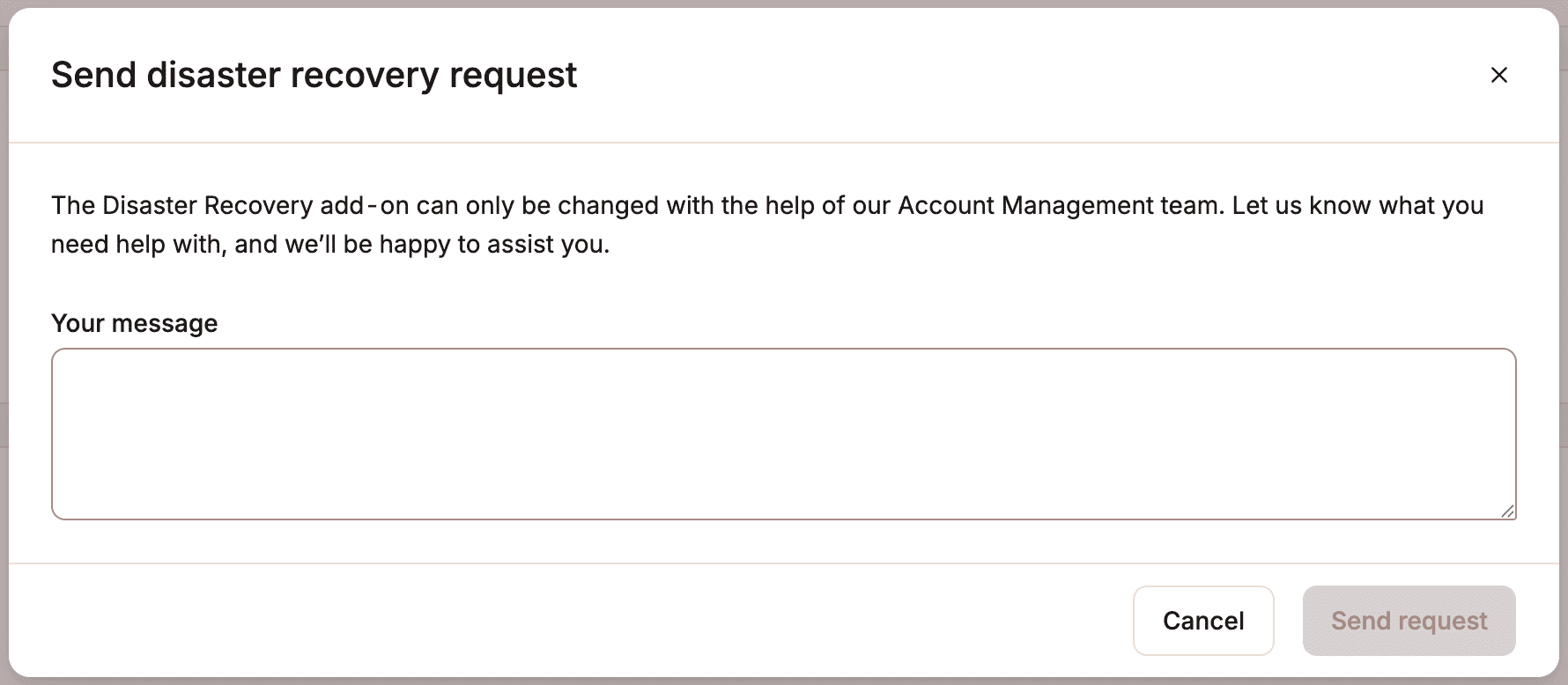
Once your Disaster recovery server is set up, if you need any changes or want to cancel it, go to the Add-ons page and click Change under Disaster recovery.

Tell us what you’d like to change, then click Send request to open a chat with our Support team.